PHP and Apache Installation Tutorial

I have lost many hours of sleep because of not being able to set up PHP and Apache. I have missed homework deadlines, fallen asleep in class, accidentally eaten an onion, and much worse. Here is my attempt to help you guys sleep at night with a very quick and easy PHP and Apache installation guide. (This is for Windows ONLY. I don’t know anything about linux or mac, I’m sorry. I’m using vista 32 for this tutorial)

To make sure this works, I’ve uninstalled my webserver, and I’ll be installing it right along side you.

UPDATE:

Although this installation is for Apache 2.2.14 and PHP 5.3.1, I’ve personally confirmed this exact installation guide works for Apache 2.2.17 and PHP 5.3.3.

UPDATE: Windows 7 Users

I’ve verified that this setup works for Windows 7 Ultimate 64 Bit.

General Rule of Thumb

If you have a choice between installing everything manually or using a packaged installer to do it all for you,
ALWAYS ALWAYS INSTALL IT MANUALLY!
So far, the packaged installers are always missing files, and the configurations are completely screwed up. Although the task of manual installation with zip files seems extremely daunting, it’s actually MUCH easier to work with. And besides, you’ve got someone to walk you through the process :)

Also, take note of which direction the slashes are facing when I tell you what to type in. That is also extremely important.

The Order of Business

Apache
PHP

Installing Apache Webserver

In this case, we get to use an MSI installer. Setting up Apache and MySQL are the easy parts. It’s setting up PHP that made me lose all that precious sleep.

Step 1)Make a folder called “webserver” on your C:\ drive.
Make a folder called webserver on your C:\ drive

Step 2)Visit The Apache Download Page. The version I will be installing in this tutorial is 2.2.14. Scroll down until you see
“Win32 Binary including OpenSSL 0.9.8k (MSI Installer)” and then click the download link right beside it.
Visit apache.org and download the MSI installer and run it

Step 3)After the installation file has finished downloading, run it. Accept all the terms and whatnot, but stop when you get to the server information.
Accept all terms and conditions

Step 4)For both the Network Domain and Server Name, type in localhost. For the email just put your email. I also have “for all users , on Port 80, as a service” selected. Click next.
Type in localhost in network domain and server name

Step 5)Select Custom Install and click next.
Select custom install

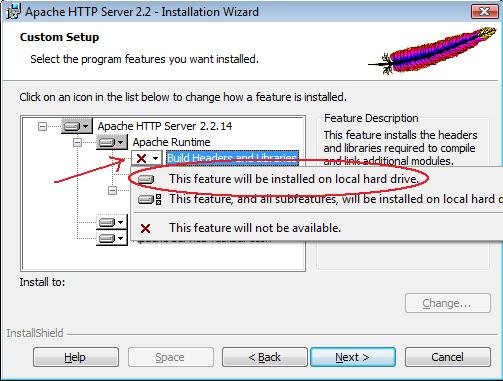
Step 6)You’ll notice a red X by “Build Headers and Libraries”. Click the dropdown menu by the X and select “This feature will be installed on local hard drive”
Enable build headers and libraries

Step 7)Click on Apache HTTP Server 2.2.14 on top and make sure it’s highlighted. This is to make sure when we specify our installation location in the next step, we aren’t just specifying a component of the webserver; we want to move the WHOLE thing.
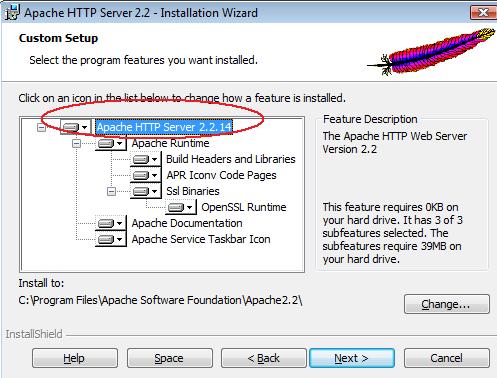
Select Apache HTTP Server 2.2.14

Step 8 )Click on change to bring up the window to change the installation path.
Click on change to bring up installation path window

Step 9)In the folder name text box, type in C:\webserver, and click Ok. Then click next and begin the installation.
Change the installation path to C:\webserver and install

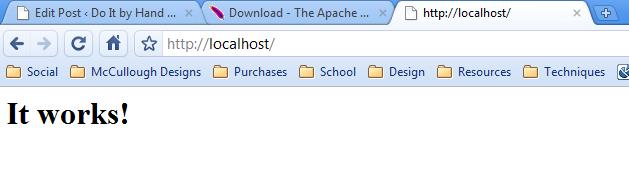
Step 10)After the installation has completed, go into a browser and type in localhost as the URL. If it the installation worked…well, Apache will tell you. :)
Type localhost into your browser and see if it worked

That wasn’t so bad! Now on to the sleep depriving monster

PHP

These steps will help you install PHP onto your webserver. We will be using manual installation for this.

Step 1)Visit The PHP Downloads Page. The version of PHP I’ll be installing is PHP 5.3 (5.3.1). Download the THREAD SAFE zip file.

Download thread safe php zip file

Step 2)After the download has finished, extract the files to C:\webserver\php

Step 3)Locate the PHP folder and open it. Look for a file called php.ini-development. Once you have found it, rename it to php.ini Windows will tell you that changing the file extension may cause it to become unusable. Change it anyway.

Rename php.ini-development to php.ini

Step 4)Open up php.ini in notepad.

Step 5)Do a search (CTRL+F) for the phrase “doc_root” (omit quotations). After the = sign, type in “C:\webserver\htdocs” (INCLUDE quotes). Your text file should look like this.

Add in the htdocs path for the doc_root

Step 6)Scroll down until you see
; Directory in which the loadable extensions (modules) reside.
; http://php.net/extension-dir
; extension_dir = “./”
; On windows:
; extension_dir = “ext”

Not too far below where we just were. Delete the semicolon in front of the line
; extension_dir = “ext”

Then replace “ext” with “C:\webserver\php\ext”

Your file should resemble this.

php.ini file adjusted for extension directory and doc_root

Step 7)Save and Close the php.ini file. Now go back to the C:\webserver directory. Open up the “conf” file.

Open apache conf file from C:\webserver directory

Step 8) Open the httpd.conf file with notepad. Copy and paste the following to the top of the file

LoadModule php5_module "C:/webserver/php/php5apache2_2.dll"
AddType application/x-httpd-php .php
PHPIniDir "C:/webserver/php"

This tells the webserver what files to load for php and where to locate the php configuration file.
Make sure a # does not appear until after the block of text you have pasted.
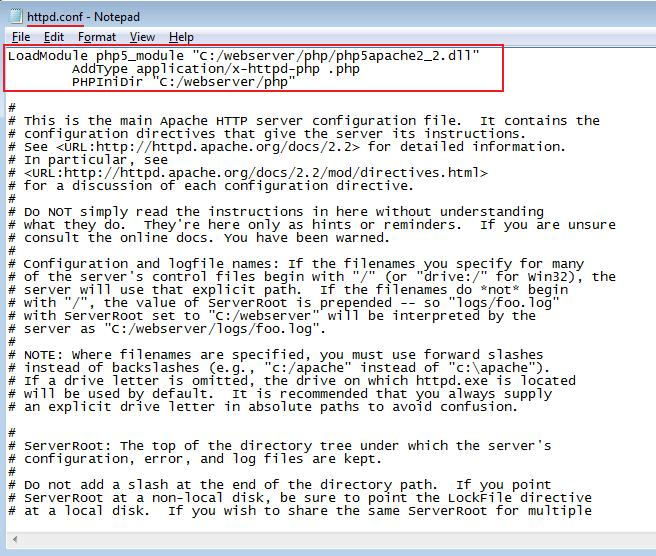
httpd.conf configuration

We’re almost there!

Now we just have a lot of copying and pasting to do. In the event you’re unable to find one of the files this tutorial references, make sure to go back and verify you downloaded the right file. If you don’t download the thread-safe version of PHP, for example, many of the dll files this guide references will be missing.

Update:

I’ve confirmed that the installation works without all this copying and pasting. You can skip to step 12 for now. If your installation fails to work, you can try these steps.

Step 9)Open the C:\webserver\php directory. Look for the file called php5apache2_2.dll. Copy and paste it into C:\windows\system32

Step 10)Copy php.ini from C:\webserver\php into C:\windows and C:\windows\system32

Step 11)Copy all the contents of C:\webserver\php\ext into C:\windows\system32

Step 12)This step will be composed of many steps.
A) Open My Computer and click System Properties at the top. (If you do not see that option, you can also right click on My Computer and click Properties)
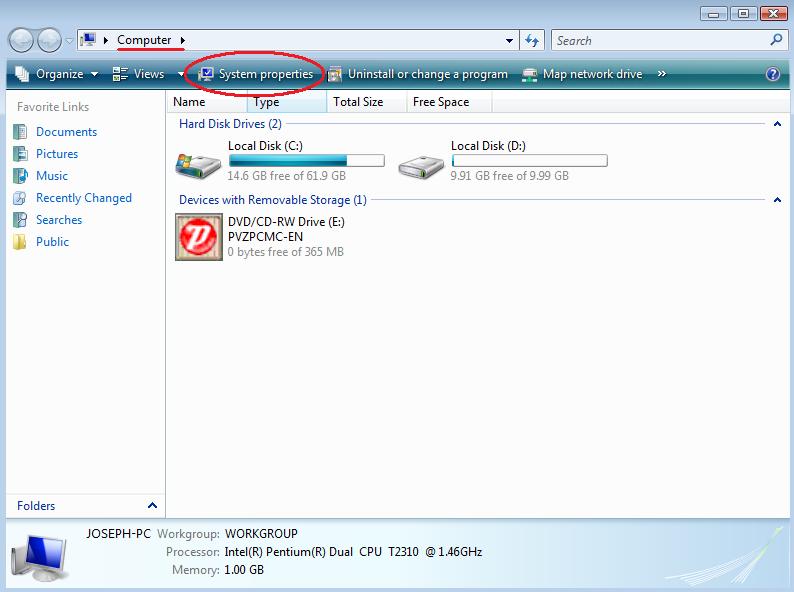
Open system properties

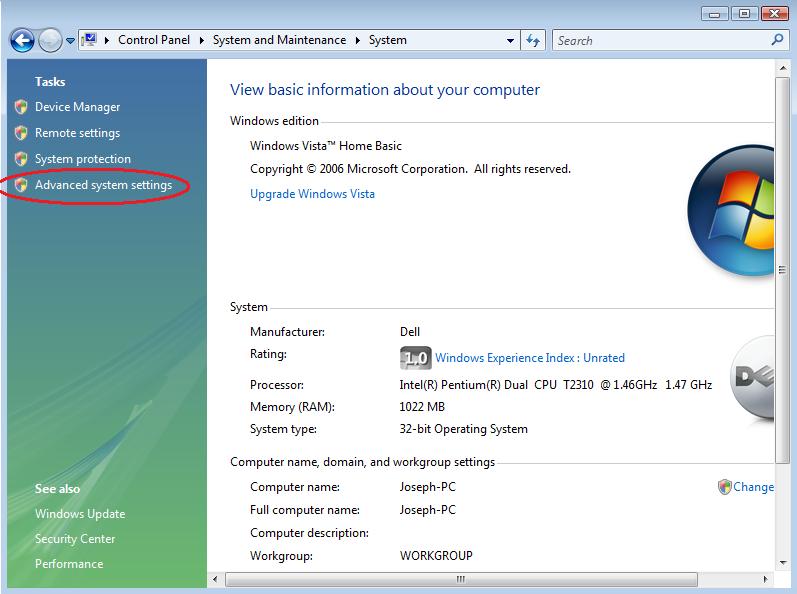
B) Click Advanced System Settings

Advanced System Settings

C) Click Environment Variables
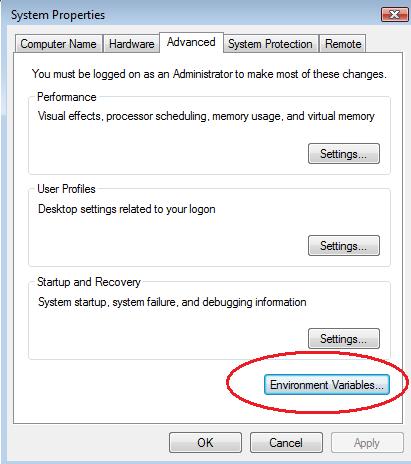
Environment Variables

D) Under System Variables (The lower half of the screen), scroll down until you see the variable named Path. Click it and press Edit.
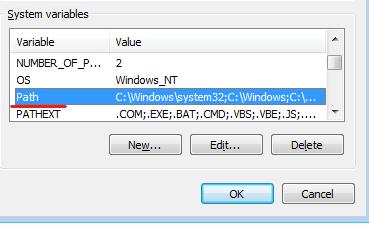
Find path under system variables

E) After the last semicolon in the variable value box, copy and paste C:\webserver\php; (Include the ending semicolon)
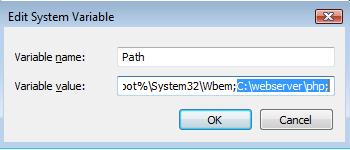
Adjust path

You’re done! Now it’s time for testing.

Testing PHP and Apache

Be sure to restart your apache server. You can do this by right clicking on the apache icon in the system tray and clicking Open Apache Monitor (Or you can access the apache monitor from your Programs into the start menu). Select apache 2.2 and click restart. If you do not restart your webserver, PHP will not work until you restart your computer.
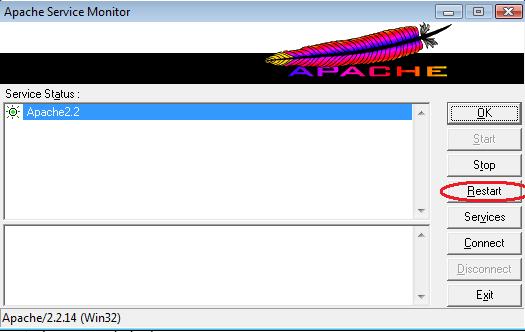
Restart Apache

Open up notepad, and paste this in:

<?php phpinfo(); ?>

Save the file as phpinfo.php in the C:\webserver\htdocs directory.
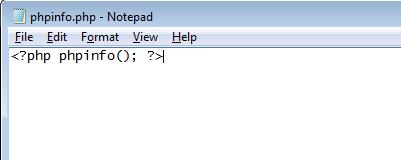
phpinfo

Now open up your browser and type in localhost/phpinfo.php into the URL bar. Do NOT Type in C:\webserver\htdocs\phpinfo.php They are NOT treated the same way even if the path leads to the same file.

If you’ve followed everything correctly, you should see a screen full of your php information. This indicates that you can now perform server-side operations such as the execution of php scripts.
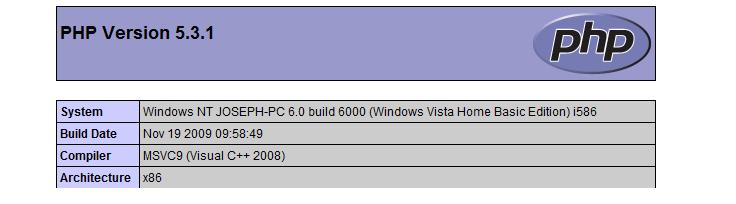
Display of phpinfo

Please let me know if there are any errors with this tutorial, or if you have any questions. I want to make sure this is just about perfect so that people don’t have to spend days and days trying to configure their first webserver. This whole process turned me off to learning php for a few months because I had already spent so much time failing to set up apache.

I will cover how to install and configure mysql, pear, and phpMyAdmin in an upcoming post.


Related Posts:

About the Author:

Joseph is the lead developer of Vert Studios, a web design company located in Tyler, Tx. Follow him on Twitter! @Joe_Query.

  1. Allen

    This was a great tutorial.

    Is there any chance you can post something on connecting to oracle via php. It seems that php is by default configured to point to a oracle instant client on some D: drive. How can this be changed in order to use my own version of oracle client?

  2. Jack Russo

    Excellent tutorial. Installed PHP and Apache on Windows 7 (64-bit) with ease.
    3 relatively minor corrections, though:
    (1) You should include a save and close after the httpd.conf file editing.
    (2) My original path variable didn’t have a closing semi-colon, so I added it before including the php path and its semicolon. You may want to point that out.
    (3) Click on the ‘OK’ button when the path variable is completed.

    Like I said, these are really minor missing steps. But, they’re missing, just the same.

    Great tutorial. Thank you very much!

  3. Hema

    Hi,

    I followed your steps but I still cannot run my server. There is no restart button instead the start button is highlighted. If i click on start it throws a pop up message “The requested operation failed”. (The service status box has red button not green as in your picture). Please help

  4. Draleva

    when i tried to start the apache server, message box appers “message operational failed” i tried to do the step 9 to 12 but to no avail, also i cant find the php5apache2_2.dll in webserver/php folder, i am 100% sure that i download the right file that i need for this to work.

    nevertheless, i would like to thank you with this tutorial.

    Thanks

    Cris

  5. Manju

    Hi,
    I followed all your steps but not able to run phpinfo.php file. It gives 404 – PAGE NOT FOUND error.
    Please suggest

  6. Tareq Issa

    i am very grateful to you. i had been surfing the internet a lot to get the write steps to install php and apache. i am new comer to the php world. My greetings to you from Gaza strip.

    • Chandima

      Thank you very much and much & Appreciate the good work you have done!!
      This really helped me a lot. Even I could remember the bitter day where I myself alone tried to do all these installation. Thank you again. you made our life lot easier..

  7. Max

    Hi,
    I have the same problem has Manju. It gives me a 404 error.

    Thanks

    max

  8. Beautiful tutorial, works right on the spot, I think the confusion comes from the different version installing on different operating systems on various architectures, now you can focus on learning php

  9. OMG!!!!!!!!! I can’t believe my eyes that I have really integrated php with apache.I tried it for ages and never succeeded.Finally I had to compromise with built-in php softwares, but not now.Thanks a ton!!! everything got in with ease,skipped directly to step 12.
    Again Thanks!

  10. And one more thing I installed on Windows 7 Ultimate X64 with SP1.

  11. sharveen

    After following all the step, apache failed to start. I tried restarting the pc but still the same.
    Please help !!!

  12. Ta Oo Dee Thaw

    Thank you so much Joseph.

  13. Alex

    Thank you so much for this tutorial

  14. RjM319

    Perfecto !

    If you are having problems go back and check your steps. Simple as THAT !

  15. Amirius

    So you say that this works for Win 7 64bit, and there are a couple of comments on succeeding with this tutorial for that OS, but there are no .msi files for this OS, so I do not see even how to start this tutorial. Every one I see is for win32.

  16. shahul hameed

    It will be possible in win.xp?

  17. neeethu

    thanks a lot..nice tutorial….

  18. Shivani

    Hey..I found it rteally helpful .I was having trouble from the last 2-3 days.

    Thanx for the help.

  19. sepideh

    hi,i dont inestal php &apach in my windows and no run this please help me and knowleage me elementry.
    my engish language very bad beacuse i am irani .
    please help me
    thanks.

  20. Zac

    Nice Tutorial, however, what is the issue with getting 404 Error when requesting for phpinfo, anybody know the problem why the the request terminates and gives an error notice?

    Hope somebody will will rectify the problem.

    And you might want to specify when you said php.ini, there are only 2 php.ini-development, php.ini-production, which will make it a bit confusing should one look for php.ini when only this 2 appear in the php directory folder.

    But thanks for the tutorial…just that page error this is what we need to rectify..maybe it will be different across the platform…

  21. Marc Andrei

    Good day! I followed all the instructions but unfortunately I can’t run the php test code. I tried to run the APACHE SERVER and it works. But when I try to input localhost/phpinfo.php , I encounter an error. What could be the probable cause?

  22. mannat

    Hi…I followed all the steps as you described..apache server works properly but when i am trying to make php file and trying to run it on localhost then it shows HTTP404 error.I have installed php (5.3.10) thread safe ..please help me out its really urgent…thans

  23. Rich

    Worked great! i did this install with PHP Version 5.4.0 and no problems. Thanks

  24. YOU ARE AWESOME BROTHER

    i have been fighting with php and apache
    for long hours of stupid errors and i have waste some precious sleeping time

    until i found this tutorial brother
    just excellent brilliant

    thousands thanks you =)

    can i do a youtube tutorial with this on the future ?

    blesssss

  25. Deeksha

    Amazing !
    Thanx a ton :)
    You made this task so simple :)
    Keep up the good work :) :)

  26. Eldine Bosch

    Hi Joseph

    I just want to sincerely thank you.

    I had to do my assignment and I could not get the PHP and Apache to work together. I struggled for over 2 weeks until I found your website.

    After I followed your instructions, I had the same problem like others about not getting the php page to work, but then I saw that I did not close my httpd.conf file I saved it, closed Internet Explorer and it worked.

    Thank you so much!!!

    Now I can continue with my studies.

    Eldine

  27. Hemant

    Thanks man, you made my day. Nicely instructed configuration. It help me install n configure without trouble

  28. Suman Kumar

    Hi,

    Thank you so much !!!! Its so nice of you to take time and explain in such easy fashion with visual illustrations. I had faced the problem. but now its fixed after referring to your article.

    Great work!! kudos.

    suman

  29. Steven van Geldern

    Installed Apache 2.2.22 and PHP 5.4.0 on my Win7 x64 system on the first try (with your help). Thanks!

  30. Vinay

    Very good tutorial. I have been struggling to get PHP on Apache for 2 days and was stuck with HTTP 404 error.

    I deleted all the setup from my PC and followed step by step instruction given here…and I am up and running on PHP/Apache. The mistake I had done was to use incorrect version of .zip file when I downloaded the PHP for Windows.

    As long as an attention is paid to the version of Apache and PHP that you have mentioned in your post, the setup should be through.

    Thanks again for a wonderful post.

  31. when i open apache “requested operation failed” error displays solution..

  32. priya

    Thank you so much for this wonderful tutorial..:)

  33. Godfrey Omara

    Thanks Joseph. That was of grate help

  34. Frank Lopes

    Outstanding directions, I have installed it on Windows 7 Ultimate x64 bit on a macbook pro using parralels for mac whent right to step 12 and it worked perfectly first time

    Thank you. I do need to know how to install mysql now thank you

  35. IAN

    PERFECT!!!!

    Thank you very much!!!

  36. RAK

    Great work Bro!

Add to the conversation: